.png)
Grant View-Only Access to Your Amazon Account
Thanks for booking a call. Before we meet, this short setup gives us view-only access to your Amazon account so we can review it in detail and come prepared. That way our time together goes to findings and next steps, not to setup. It takes about 5 minutes, you stay the owner, and you can remove access at any time.
View-only lets us see your listings, reports, and ad campaigns. It does not let us change anything. Sharing it before the call means we walk in with a real read on the account and specific, prioritised ideas, so the meeting is action-oriented from minute one.
Sign in to Amazon Seller Central with your owner login on a desktop or laptop. The steps below match what you will see on screen.
01 Send us the invite
In the top-right menu of Seller Central, open the settings menu and click User permissions.
The menu opens from the gear or account icon in the top navigation bar.
On the User permissions page, open Manage Employees. You will see who can access your account today. Click Add Employee.
| Name | E-mail Address | Account Role | Status |
|---|---|---|---|
| You (Account owner) | ●●●●●●●● | Owner | Active |
A window asks who you want to add. Choose the Employee option and click Invite Employee.
Please use Employee for this. Do not pick Service Provider.
Who do you want to add to your account? ×
Employee
Add people to your account directly by email or link.
Service Provider
Get a secure link to give non-employees access.
Type a name you will recognise, such as Amplivus. In the E-mail field, add our access email below, then click Send Invite.
You will see a confirmation that the invite was sent. You can close this window. Nothing else is needed from you at this point.
Invitation Sent ×
We will be prompted to sign in and accept. Once we accept, we appear as a user for you to manage.
We accept from our side. After you send the invite, our team signs in and accepts it. You do not need to do anything while this happens. We will confirm with you, and you will then see Amplivus listed as Active on your Users page. This usually takes only a few minutes.
02 Set our access to View only
Once we show as Active on your account, finish the last part. This is where you choose exactly what we can see. We only need View on three areas, and nothing else.
Go back to Manage Employees. Find the Amplivus row now marked Active, and click Edit to open its permissions.
| Name | E-mail Address | Account Role | Status | |
|---|---|---|---|---|
| You (Account owner) | ●●●●●●●● | Owner | Active | |
| Amplivus | ●●●●●●●● | Contributor | Active |
At the top of the permissions page there is a box for Grant universal site admin access. Please leave this box unchecked. View-only does not need it.
Scroll to the permission list. For each of the three areas below, click the View button. Leave every other area on None. This gives us read-only access and no ability to make changes.
The three areas we review: Inventory (Manage Inventory), Reports (Business Reports), and Advertising (Amazon Ads campaigns).
Click Save Changes in the bar at the bottom. You will see a message that your changes are saved. Access can take up to 5 minutes to take effect.
03 That is it
You are done. We will confirm once access comes through, usually within a few minutes, and start our review ahead of the call.
With access ahead of time, we come to the call with a real read on your account: where spend is leaking, quick wins, and a prioritised next-step plan. If any screen looks different, send us a screenshot and we will guide you through it.
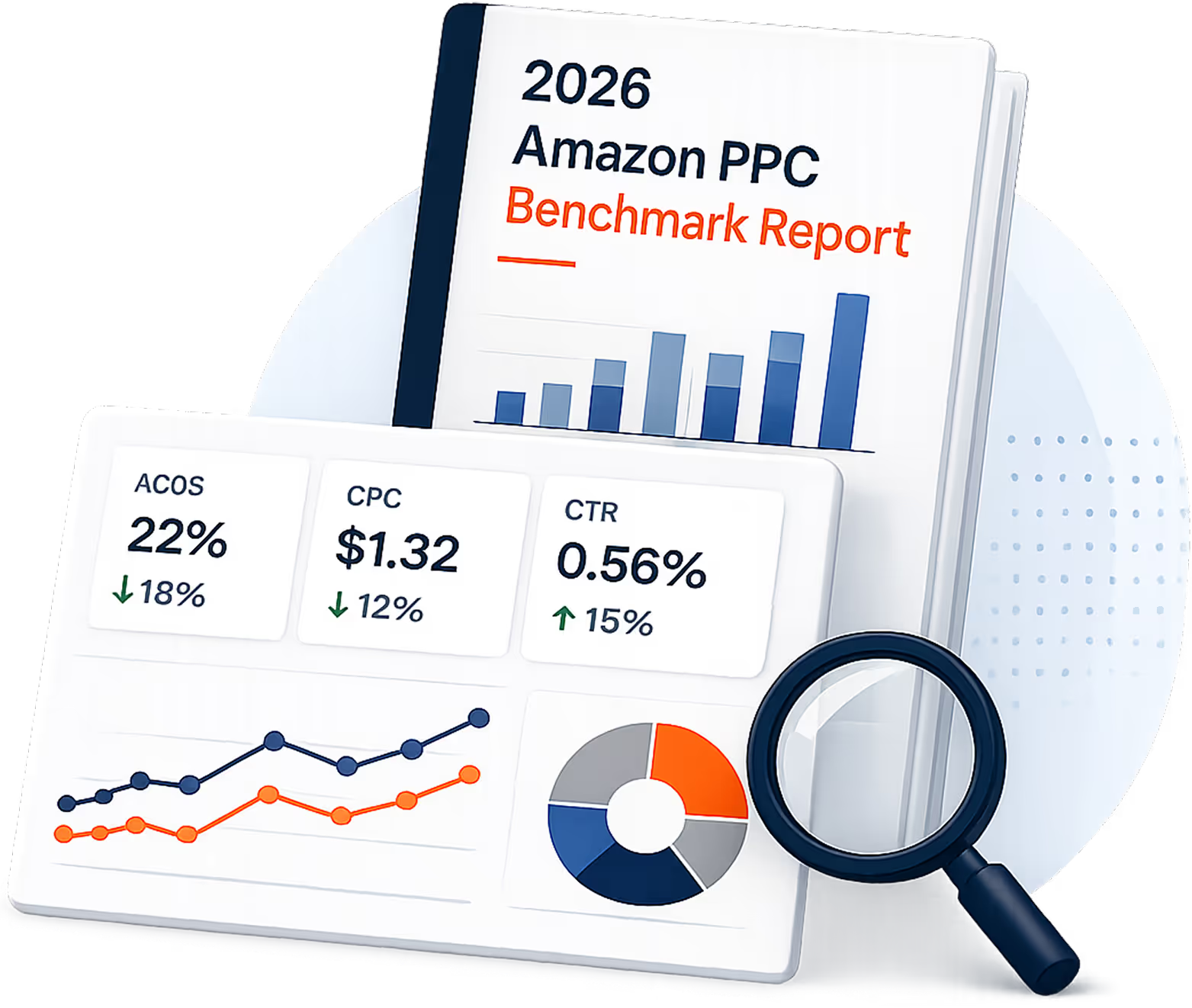
2026 Amazon PPC Benchmark Report
ACoS, CPC, CTR, CVR and ROAS bands across 7 industry datasets. Updated quarterly.
.png)
.png)
Your category's real
ACoS, CPC, CVR numbers
How your account compares
to 2026 benchmarks
5 moves to ship
this quarter

Aggregated from 7 industry datasets
plus $50M+ managed ad spend.